1
Get the client
Head to the download page, choose the build that matches your device, and grab the installer from the official channel.
QUICKQ works on your computer and your phone — Windows, macOS, iOS, Android, and Linux all have a client. Sign in once, pick a route from the list, and connect; the screen tells you right away whether you are online. The same account can sign in on several devices without them getting in each other's way, so a new device needs no re-configuration. From download to connected, the whole journey is three steps.
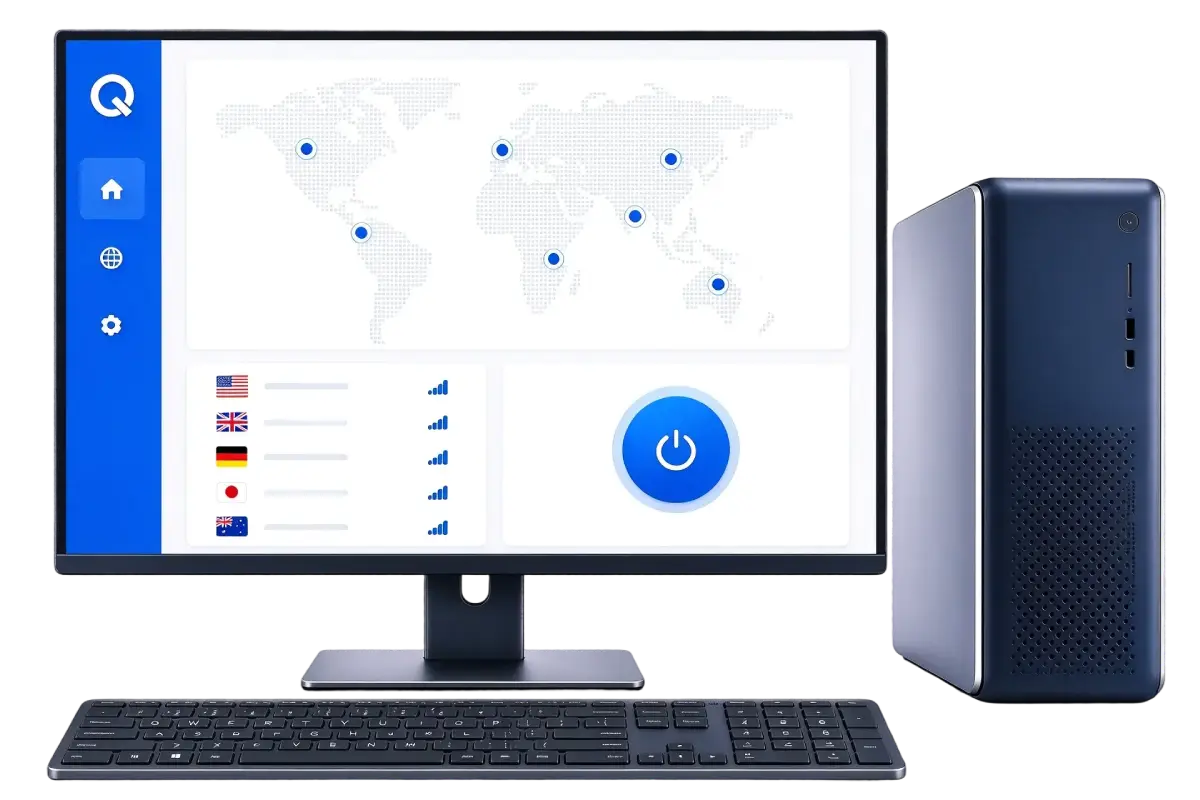
Get the client, sign in, then pick a route and connect — nothing else stands between you and a working setup.
Head to the download page, choose the build that matches your device, and grab the installer from the official channel.
Open QUICKQ and sign in with the account you registered; the route list shows up right away.
Choose a route that looks healthy, tap connect, and wait for the status to switch to connected.

Every route shows its name and whether it is usable, so you can switch whenever your needs change.
Connecting, disconnecting, and switching all come with obvious feedback, so you never have to guess.
Once you are signed in, the home screen lets you connect directly — no digging through settings.
Which information is collected, what it is used for, and how it is protected are all explained in the privacy policy.
Installation, sign-in, route selection, and connections are covered in the tutorials and the FAQ.
The workflow feels the same across devices, so switching hardware does not mean starting over.
Download the client, follow the tutorials, or check the FAQ — any of these three gets you moving.
The official Windows 10 / 11 (64-bit) client, with a checklist before you install and answers if something stalls.
Six steps from download to connection, and each step shows you how to verify that it worked.
Speed, account, device, and connection questions, each answered with a cause first and steps after.
Grab the client, walk through the tutorial once, and you are connected.